
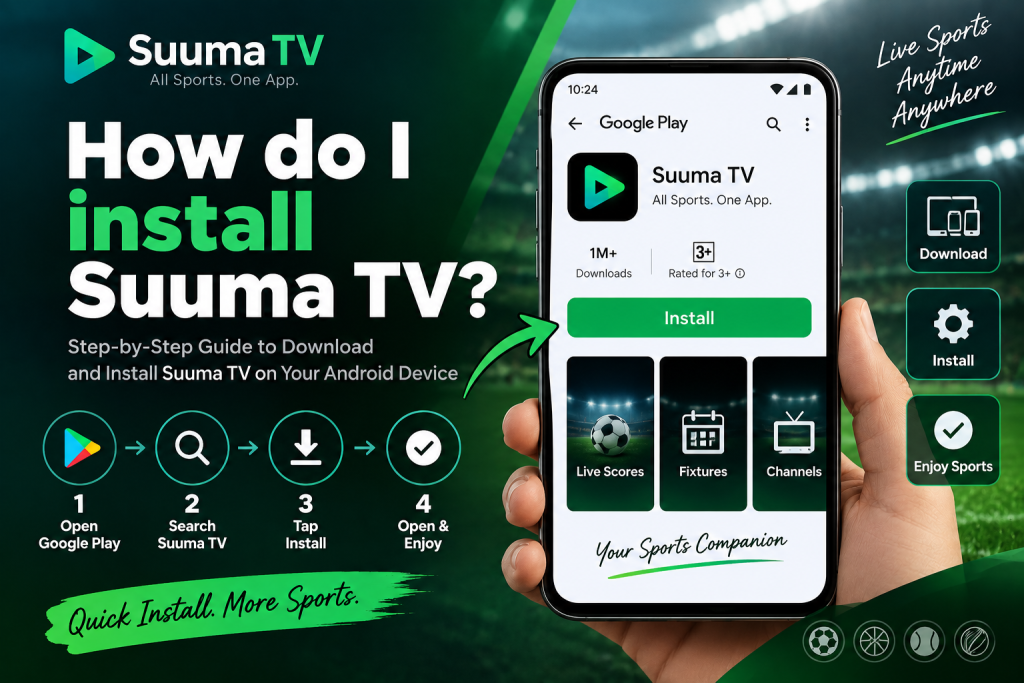
Suuma TV is an Android sports app designed for users who want quick access to live scores, fixtures, channel listings, team information, and match updates. Installing the app is generally straightforward, especially when using Google Play, while users who prefer manual installation can also use the official APK.
Before installing Suuma TV, it is important to check your Android version, available storage, internet connection, and download source. Choosing the correct installation method not only makes setup easier but also reduces the risk of failed installations, incompatible files, or unnecessary security issues.
Suuma TV Installation Requirements
Before downloading the app, make sure your Android phone or tablet meets the basic requirements. Suuma TV supports Android 6.0 or later and is designed for both 32-bit and 64-bit ARM devices.
The current version is relatively lightweight, but you should still keep some additional storage available because Android may need temporary space while downloading and installing the application.
| Requirement | Details |
|---|---|
| Operating system | Android 6.0 or later |
| Supported devices | Android phones and tablets |
| Processor support | 32-bit and 64-bit ARM |
| Internet connection | Required for current sports information |
| Storage | Enough space for app and cached data |
| Installation options | Google Play or official APK |
A stable Wi-Fi or mobile data connection is also recommended because Suuma TV needs internet access to retrieve updated scores, fixtures, channel times, and other sports information.
Method 1: Install Suuma TV From Google Play
For most users, Google Play is the simplest and safest installation method. The store handles compatibility checks, downloads the correct build, and manages installation automatically.
Open the Google Play Store on your Android phone or tablet and search for Suuma TV. Before installing, check the app name and developer information carefully so that you choose the intended application rather than a similarly named listing.
Once you have confirmed the correct app, tap Install. Google Play will download the required files and complete the installation without requiring you to change any security settings.
After installation finishes, tap Open to launch Suuma TV. If automatic updates are enabled, Google Play can also keep the application updated when newer versions become available.
Why Google Play Is the Easier Option
Installing through Google Play removes most of the technical steps associated with APK installation. You do not need to enable unknown-app permissions, manually locate installation files, or repeatedly download new APKs for routine updates.
For users who simply want the app working with minimal setup, Google Play is therefore the most convenient option whenever the listing is available for their device.
Method 2: Install Suuma TV Using an APK
Android users can also install Suuma TV manually using an APK file. An APK is the installation package Android uses for applications distributed outside the Google Play Store.
This method can be useful when the store version is unavailable on a particular device or when a user specifically prefers manual installation. However, APK files should only be downloaded from a trusted source.
Avoid unofficial modified versions, cracked applications, or APK files shared through unknown websites. A modified package can contain unwanted software or request permissions that are not necessary for the app’s normal functions.
Download the Latest APK to Your Android Device
Open the official Suuma TV website directly on the phone or tablet where you want to install the application. Navigate to the download section and select the newest compatible APK.
Your browser may display a warning or confirmation before downloading the file. This is normal because Android browsers treat installation packages more cautiously than regular documents or images.
Allow the download to finish before opening it. You can usually find the APK inside your Downloads folder, browser download history, or Android notification panel.
Do not attempt to install a file that has only partially downloaded. Incomplete or corrupted APK files are a common cause of installation errors.
Allow Installation From Unknown Apps
Android blocks most external APK installations by default. This protection helps prevent apps from being installed without the user’s permission.
If you open the Suuma TV APK and Android blocks it, go to the relevant security settings. On many modern Android phones, the path looks similar to:
Settings > Apps > Special app access > Install unknown apps
Choose the browser or file manager that you used to download the APK and temporarily allow that source to install applications.
Older Android versions may show a more general Unknown sources setting under Security. Menu names can vary depending on the Android version and phone manufacturer.
Only Enable the Permission You Need
You do not need to allow every application on your phone to install unknown apps. Grant the permission only to the browser or file manager being used for the Suuma TV installation.
Keeping this permission limited reduces unnecessary security exposure and gives you better control over which apps can install software on your device.
Review the APK Before Installing
After enabling the required permission, return to your Downloads folder and tap the Suuma TV APK. Android should display an installation screen before any changes are made to the device.
Take a moment to review the app name and any information shown on the screen. Avoid quickly accepting unfamiliar prompts without checking what they mean.
Suuma TV uses internet access to retrieve current scores, fixtures, match information, and channel details. Notification permission can also be useful if you want match reminders or sports alerts.
Permissions that appear unrelated to the app’s normal purpose should be treated carefully. Contacts, SMS, call logs, microphone, camera, and precise location are not necessary for the core sports-information functions described for the app.
Complete the Installation Process
Once you have verified the installation screen, tap Install. Android will process the APK and add Suuma TV to your device.
When installation is complete, you should see options such as Open and Done. Choose Open if you want to start using the app immediately, or Done if you prefer to launch it later from the home screen or app drawer.
If Google Play Protect displays a security warning, do not dismiss it automatically. First, confirm that the APK came from the source you intended to use and that the file has not been replaced or modified.
Security warnings are designed to help identify potentially unsafe installation files, so they should always be reviewed carefully.
Disable APK Installation Permission Afterwards
Once Suuma TV has been successfully installed, it is a good idea to disable the temporary unknown-app permission that you enabled earlier.
Return to Install unknown apps, select your browser or file manager, and switch the permission off. Disabling this setting does not remove Suuma TV or prevent the installed application from working.
If you need to install a future APK update manually, you can temporarily enable the permission again. Keeping it disabled the rest of the time is a simple Android security best practice.
Set Up Suuma TV After Installation
When you open Suuma TV for the first time, you can begin customizing the app around the sports, competitions, or teams you follow.
The application organizes sports information such as live matches, upcoming fixtures, scores, channel listings, and team details in one interface. Selecting your preferred sports can make the home screen more relevant to your interests.
If you want alerts before important matches, allow notification access when requested. Users who do not want notifications can decline the permission and continue using the rest of the app normally.
A stable internet connection will still be needed whenever you want current scores or updated match information.
How Suuma TV Updates Work
The update process depends on how the application was originally installed.
Users who installed Suuma TV from Google Play can generally receive updates directly through the store. Automatic updates can also be enabled if you want newer versions installed without manually checking every time.
Users who installed the APK manually may need to return to the official source when a newer build becomes available. The new APK can then normally be installed over the existing version.
Keeping the app updated is recommended because newer releases may contain bug fixes, Android compatibility improvements, feature changes, and general performance enhancements.
What to Do If Suuma TV Will Not Install
Installation problems are often caused by device compatibility, insufficient storage, incomplete downloads, or blocked APK permissions.
Start by confirming that your phone or tablet runs Android 6.0 or later. Then make sure enough storage is available and verify that the APK has downloaded completely.
If Android says installation from the source is not permitted, check whether Install unknown apps is enabled for the correct browser or file manager.
A corrupted APK can often be fixed simply by deleting the file and downloading a fresh copy from the trusted source.
Common Installation Problems
- APK will not open: Confirm that the file finished downloading and is a valid Android package.
- Installation is blocked: Enable temporary unknown-app permission for the correct browser or file manager.
- Not enough storage: Remove unnecessary files or apps and try again.
- Device is incompatible: Check that the phone or tablet meets the minimum Android requirement.
- Play Protect warning: Verify the APK source before deciding whether to continue.
- Newest version fails: Check whether a compatible older build is officially available.
Avoid solving installation problems by downloading modified APKs from random websites. An unofficial file may create more problems than it fixes.
Devices That Are Not Officially Supported
Suuma TV is primarily designed for Android mobile devices. An Android APK cannot be installed directly on an iPhone or iPad because iOS uses a completely different application format.
There is also no standard native Windows or macOS installer comparable to the Android version. Android TV and emulator environments may behave differently because the mobile app is not specifically designed around television controls or desktop virtualization.
For the most reliable experience, use a compatible Android smartphone or tablet and choose Google Play or the official APK installation method.
Which Installation Method Should You Choose?
Google Play is the better option for most users because it provides automatic compatibility checks, simple installation, and easier future updates. It also avoids the need to change Android’s APK security settings.
Manual APK installation is useful when Google Play is unavailable or when a user specifically needs the official standalone file. However, it requires more care because the user is responsible for choosing the correct source and managing permissions.
Whichever method you choose, the most important factors are device compatibility, a trusted download source, sufficient storage, and careful attention to Android security warnings.
Conclusion
Suuma TV can be installed most easily through Google Play, where Android handles downloading, device compatibility, installation, and future updates with minimal effort. Users who need manual installation can use the official APK by downloading the correct file, temporarily allowing unknown-app installation, reviewing the package carefully, and disabling the sideloading permission afterwards.
Suuma TV installation should remain straightforward when you use a compatible Android phone or tablet and follow basic security practices. Checking your Android version, storage space, download source, permissions, Play Protect warnings, and available updates can help prevent common installation problems while providing a safer way to access scores, fixtures, channel listings, team information, and match reminders.