
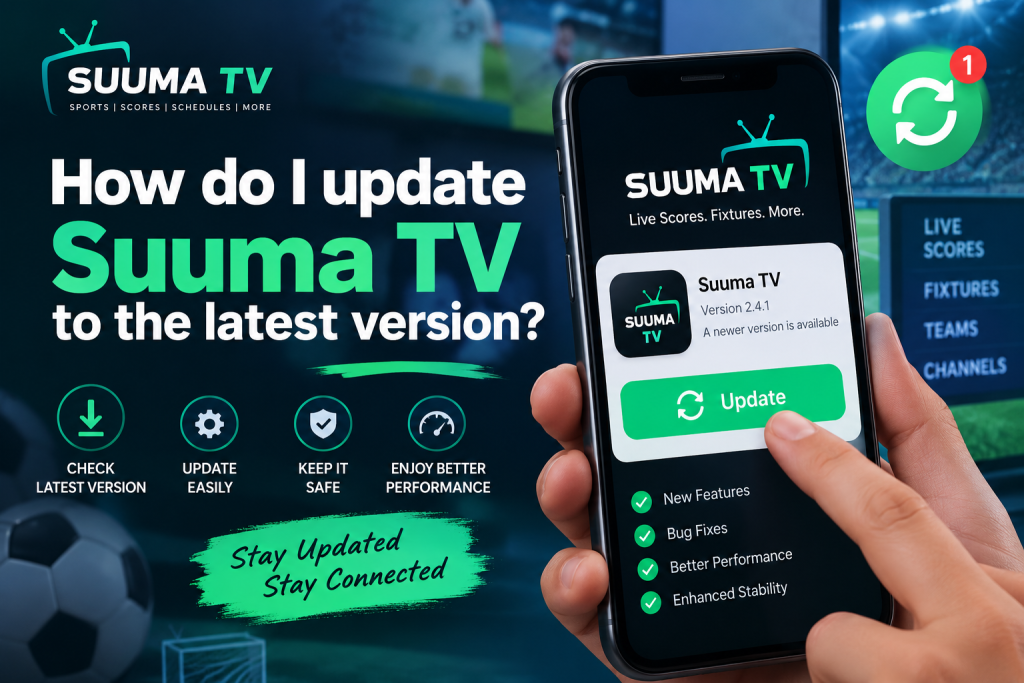
Suuma TV regularly receives updates that may improve compatibility, fix bugs, and help its sports features work more smoothly. Keeping the app updated is especially important for users who rely on live scores, fixtures, channel listings, team information, and match reminders throughout the day.
If you downloaded Suuma TV through Google Play, the update process is usually quick and mostly automatic. Users who installed the app manually through an APK need to follow a slightly different process, so this guide explains both methods along with safe update practices and common troubleshooting steps.
Check Your Current Suuma TV Version First
Before downloading a new release, check which version of Suuma TV is already installed on your Android device. This prevents unnecessary downloads and helps you confirm whether your app actually needs an update.
Open Settings > Apps > Suuma TV and look for the version number under the App info section. The exact menu name can vary slightly depending on your Android version and phone manufacturer, but most devices display the installed version somewhere on the application information screen.
As of September 2026, the official Suuma TV information lists version 2.4.1 as the current release, with an approximate download size of 18 MB and support for Android 6.0 or later. Compare that information with your installed version before proceeding.
Quick Update Check
| Item | What to Check |
|---|---|
| Installed version | Check under Android App info |
| Latest listed version | Version 2.4.1 |
| Minimum Android version | Android 6.0 or later |
| Approximate app size | 18 MB |
| Update method | Google Play or manual APK |
If your installed version matches the latest available build, you normally do not need to reinstall the application.
Update Suuma TV Through Google Play
For users who originally downloaded Suuma TV from Google Play, updating through the store is the easiest option. Google Play handles compatibility checks, downloads the correct package, and installs the newer version without requiring manual APK settings.
Open the Google Play Store on your Android phone or tablet, tap your profile icon, and select Manage apps & device. Look through the available updates and find Suuma TV if a newer version has been released.
You can also search for Suuma TV directly inside Google Play. If an update is available, the normal Open button should be replaced by an Update button, which you can tap to begin installation.
Once the update finishes, open the app and confirm that it launches normally. Google Play currently shows that Suuma TV was updated on September 6, 2026, so users with an older build should compare their installed version carefully.
Enable Automatic Updates for Easier Maintenance
Users who do not want to check manually every time can enable automatic updates through Google Play. This allows newer versions to install automatically when the device meets the required network, battery, and store conditions.
Open the Suuma TV page in Google Play, tap the three-dot menu in the upper-right corner, and enable Auto-update if that option appears. Once activated, Google Play can handle future updates without requiring you to download each new version manually.
Automatic updates can be particularly helpful for sports apps because newer releases may include fixes related to scores, schedules, notifications, Android compatibility, or general performance. They also reduce the risk of accidentally downloading an outdated or unofficial APK.
Updating a Manually Installed APK Works Differently
If you installed Suuma TV through an APK rather than Google Play, the update process normally needs to be completed manually. Sideloaded applications do not always receive store-managed updates, so users need to check for a newer build themselves.
Visit the official Suuma TV website from the Android device where the app is installed and check the latest release shown in the download section. The site currently lists version 2.4.1 as the main release and also retains version 2.3.6 as an older archived build.
In most situations, users should choose the newest version that is compatible with their device. Archived versions are generally more useful when an older Android phone cannot install the latest release successfully.
Download the Latest APK From a Trusted Source
When updating manually, always obtain the APK from a source you trust. A file with a higher version number is not automatically legitimate, especially if it comes from an unknown download website or third-party file-sharing page.
Allow the new APK to download completely before opening it. You can usually find the file inside the Downloads folder, your browser’s download history, or the Android notification panel after the download finishes.
If the file appears incomplete or the download was interrupted, delete it and download it again. Installing a damaged or partially downloaded APK can lead to installation errors or unexpected app behavior.
Allow APK Installation When Android Blocks It
Android may block the new APK if the browser or file manager does not have permission to install applications from outside Google Play. This is a normal security feature intended to prevent unauthorized software installation.
On many Android phones, the relevant option can be found under:
Settings > Apps > Special app access > Install unknown apps
Choose the browser or file manager that downloaded the Suuma TV APK and temporarily enable permission for that source. The exact menu names may vary depending on the Android version and device manufacturer.
Only enable this permission for the application you are actively using to install the update. There is no need to give every browser or file manager permanent permission to install unknown apps.
Install the New Version Over the Existing App
In most cases, you do not need to uninstall the current Suuma TV version before installing an official newer APK. Opening the updated package should allow Android to recognize the existing application and offer an update rather than a completely separate installation.
Tap Install or Update when Android displays the installation screen. Allow the process to finish fully before launching Suuma TV again, and avoid interrupting the installation by restarting the phone or closing important system prompts.
After installation, open Suuma TV and confirm that it works normally. You can then check the version number again under App info to verify that the newer build has been installed successfully.
Pay Attention to Play Protect Warnings
Google Play Protect may occasionally display a warning when an APK is installed manually. A warning should not be ignored automatically, even if you believe you downloaded the correct Suuma TV version.
First, confirm that the APK came from the source you intended to use and that the application name and version look correct. Security warnings are designed to protect users from modified or potentially harmful installation packages.
If anything appears unusual, stop the installation and verify the download source before continuing. It is safer to download a fresh official copy than to force an uncertain APK onto your device.
Disable Unknown-App Permission After Updating
Once the Suuma TV update has been installed successfully, you can disable the permission that allowed your browser or file manager to install unknown applications. This is a simple security step that reduces unnecessary installation access on your device.
Return to Settings > Apps > Special app access > Install unknown apps, choose the application you previously authorized, and turn the permission off. Disabling it will not remove Suuma TV or interfere with the newly updated version.
If you need to install another official APK update later, the setting can be temporarily enabled again. Keeping it disabled between updates is generally the safer approach.
Avoid Modified or Unofficial Update Files
Users should avoid unofficial “mod,” “premium,” cracked, or altered versions of Suuma TV offered by unknown websites. Modified APK files may contain changes that were never included by the original developer and can create security, privacy, or stability problems.
A suspicious update may also request permissions unrelated to the app’s normal purpose. Contacts, SMS, call logs, microphone, camera, and precise location are not required for the sports-information functions described for Suuma TV.
If a supposed update suddenly asks for unusually sensitive permissions, stop the installation rather than accepting them immediately. Verify the file source and compare the requested permissions with what you normally expect from the app.
What to Do If the Latest Version Will Not Install
An update failure does not always mean there is a serious problem. Common causes include insufficient storage, an incomplete APK, an unsupported Android version, incorrect installation permissions, or a temporarily stuck Google Play Store.
Start by checking that your device runs Android 6.0 or later and has enough free storage for installation. If you downloaded an APK manually, confirm that the file finished downloading and that the correct browser or file manager has temporary installation permission.
Common Update Problems and Solutions
| Problem | Recommended Action |
|---|---|
| Update button does not appear | Confirm whether you already have the latest version |
| APK will not install | Check Android version and available storage |
| Installation is blocked | Enable permission for the correct APK source |
| Downloaded file gives an error | Delete it and download a fresh copy |
| Play Store update is stuck | Restart the Play Store or your device |
| Latest version is incompatible | Check whether an older official build is available |
| Unusual permissions appear | Stop and verify the APK source |
If the latest build is genuinely incompatible with an older device, an archived official version may be available. However, older releases may not include the latest fixes, improvements, or compatibility changes.
Should You Uninstall Suuma TV Before Updating?
Usually, uninstalling the existing app is unnecessary and may remove locally stored preferences or cached information. Google Play updates the existing installation automatically, while a compatible official APK can normally be installed directly over the older version.
Uninstallation should generally be considered only when the existing app is corrupted or when a trusted troubleshooting guide specifically recommends a clean installation. Even then, users should make sure they understand what app data or preferences may be lost.
For routine updates, simply installing the newer official build is normally the cleaner and more convenient approach.
Why Keeping Suuma TV Updated Matters
Updating Suuma TV is not only about getting a new version number. New releases can include bug fixes, Android compatibility improvements, interface adjustments, performance changes, and updates that help existing sports-information features work more reliably.
Older versions may continue to open for some time, but they can gradually become less compatible with newer Android releases or backend changes. Keeping the application current reduces the likelihood of avoidable problems with loading, notifications, fixtures, or general navigation.
Users should therefore check for trusted updates periodically, especially when they notice unusual behavior or when an official newer release becomes available.
Conclusion
Suuma TV can be updated most easily through Google Play, where newer versions can be installed automatically or manually by tapping the Update button. Users who installed the application through an APK need to check the official source, download the latest compatible build, temporarily allow APK installation when necessary, and install the new version over the existing app.
Suuma TV should be kept updated whenever a trusted newer release becomes available because current builds may include important fixes, compatibility improvements, and performance changes. Always verify the download source, pay attention to Play Protect warnings, avoid modified APK files, and disable unnecessary unknown-app permissions after completing a manual update.